Let's Spin Up a Docker Container
Docker Images and Docker Containers #
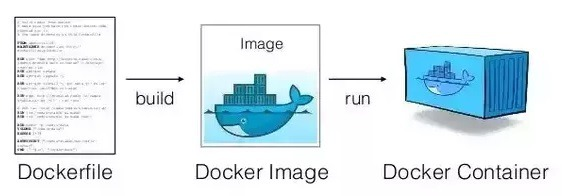
Docker Images #
Images are essential for creating containers, similar to ISO files used for creating virtual machines.
Image Naming Convention
[repository_name]/[image_name]:[tag]
- The repository name indicates where the image is stored; if not specified, it refers to an official image from Docker Hub.
- The image name indicates its purpose.
- The tag is for image version management; if omitted, the Docker engine automatically recognizes it as
latest.
Docker Containers #
Docker images come in various types, ranging from operating systems to applications and various tools.
Creating a container from such an image generates an isolated environment tailored to its specific purpose.
Whatever you do within the container, the original image remains unaffected.
This is because any changes are stored in the container layer.
Creating Containers #
docker run #
$ sudo docker run -it ubuntu:18.04
This command simultaneously downloads an image, creates a container, and runs it. The -it option enables interactive input/output with the container, meaning you can enter commands into the container.
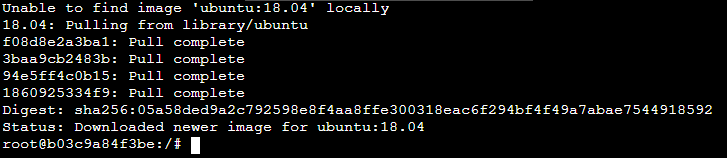
ubuntu:18.04 is an official image from Docker Hub, and if it's not available locally, it will be automatically downloaded.
docker images #
$ sudo docker images

This displays the image just downloaded from the central hub. You can see that even though it's Ubuntu, its size is quite small.
docker pull #
$ sudo docker pull centos:8
Unlike run, this command can be used when you only want to download an image without creating a container.
docker create #
$ docker create -it --name mycentos centos:7
To create a container from a downloaded image, use the docker create command. You can specify a container name using --name. If you don't, Docker will automatically generate a name.
docker start #
$ sudo docker start {container name or container ID}
This command starts a container. To connect to it, you need to additionally enter docker attach [container name or container ID].
Checking Container List #
To check the list of containers, you can run the docker ps command.

To see stopped containers as well, add the -a option.
Deleting Containers #
To delete a stopped container, run the docker rm [container] command.
However, if you try to delete a running container, it won't be deleted. In such cases, you can either stop it with docker stop and then delete it, or force delete it with docker rm -f.