Using Docker Volumes
Docker Volumes #
When you create a container from a Docker image, the image becomes read-only.
So, where are the activities performed within the container recorded?
They are recorded in a place called the container layer, on top of the image.
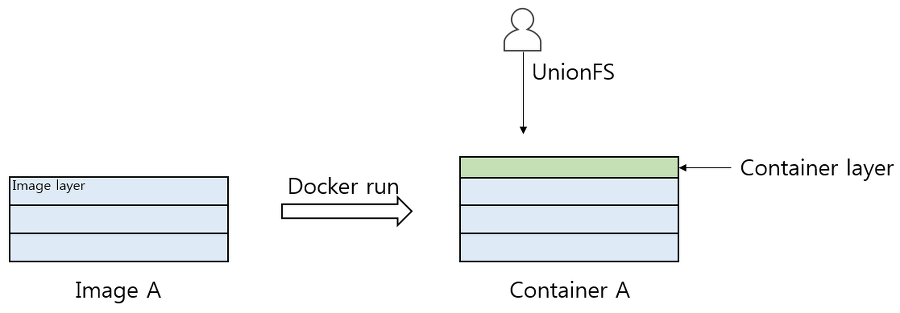
However, there's a fatal flaw: if you delete the container, this data is also lost.
Once deleted this way, it's said that the data cannot be recovered later.
One way to solve this problem is by using volumes.
1. Sharing Volumes with the Host #
$ docker run -d
-- name wordpressdb
-e MYSQL_ROOT_PASSWORD=password
-e MYSQL_DATABASE=wordpress
-v /home/ubuntu/wordpress_db:/var/lib/mysql
mysql:5.7
This allows the host's /home/ubuntu/wordpress_db and the container's /var/lib/mysql to be shared with each other. Note that even if such a folder doesn't exist on the host, it will be created automatically.

Now, let's try deleting the container. You can confirm that even if the container is deleted, the folder on the host remains well-preserved.
So, what happens if files already exist in both the host and container directories when they are shared?
To put it simply, the container directory will be overwritten with the contents of the host directory.
2. Utilizing Volume Containers #
Let's create a volumn_container. You can see that the host's /home/ubuntu/wordpress_db and the container's /home/testdir_2 are shared with each other.
$ docker run -it --name volumn_container
-v /home/ubuntu/wordpress_db:/home/testdir_2 ubuntu:18.04
Next, let's create another container called volumes_from_container.
$ docker run -it --name volumes_from_container
--volumes-from volumn-container ubuntu:18.04
This time, the --volumes-from option was used. This means that volumes_from_container will share the folder that volumn_container and the host are sharing, rather than directly sharing with the host.
Used this way, a single volumn_container acting as a volume container can be used to share with multiple other containers.

3. Creating Docker-Managed Volumes #
Finally, here's the third method. This approach utilizes the volume features provided by Docker itself, using the docker volume command.
First, create a volume.
$ docker volumn create --name myvolume
$ docker volumn ls
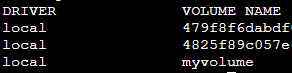
Then, when creating a container, you just need to connect it to that volume.
$ docker run -it --name myvolume_1 -v myvolume:/root/ ubuntu:18.04
You can create a container using the format [volume name]:[container shared directory].
Like volume containers, it can be shared and used by multiple containers. You can find out where myvolume is actually stored using docker inspect --type volume myvolume.
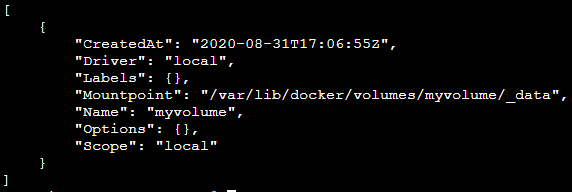
To delete unused and orphaned volumes all at once, you can use the docker volume prune command.