Exposing Containers Externally
Checking Container IP Address #
Let's create an Ubuntu container, connect to it, and then check its IP address using the ifconfig command.
If you just try it, it will say the ifconfig command cannot be found, which is because nothing is installed yet.
$ apt-get update
$ apt-get install net-tools
After installing net-tools, ifconfig will run successfully.
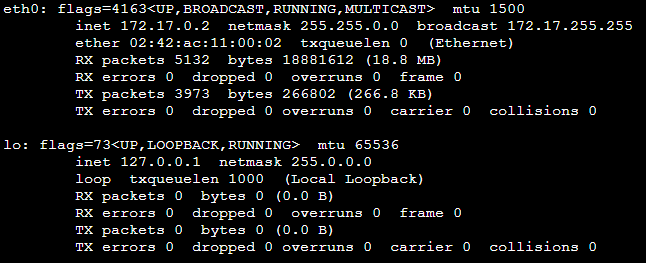
Docker sequentially assigns IP addresses in the 172.17.0.X range to containers. Note that lo below refers to the local host.
Container Port Forwarding #
To expose a container's application externally, you need to bind the eth0 IP and port to the host's IP and port.
If you already have a container created, you must delete it and reconfigure it.
$ docker run -it --name mywebserver -p 80:80 ubuntu:18.04
After running the above command, enter the container and install the Apache web server. Note that the Apache web server operates on port 80. This is why port 80 was opened on the Docker container.
$ apt-get update
$ apt-get install apache2
$ service apache2 start
You can check if the port settings are correct using the docker ps -a command.

Go to the AWS Security Group, check if port 80 is open, and try connecting with the public IP.

Understanding the Structure #
If you don't understand port forwarding, you might wonder how this connection works.
IP addresses are commonly divided into public and private IPs.
If you're using a router, connecting to the router uses a public IP, and the IPs the router assigns are private IPs.
Furthermore, even if you open a port on a computer using a private IP, it cannot be accessed from outside.
Therefore, the process of connecting a public IP:port number with a private IP:port number is called port forwarding.
The same applies to Docker containers. Even if port 80 is open in the AWS Security Group, you cannot access the Docker container unless it is forwarded to the host. To enable access, you need to perform the steps described above.